
In this post I’ll go over all the details on acquiring access tokens to authenticate to any Microsoft SQL engine, including Azure SQL, Azure Synapse and Microsoft Fabric. We’ll explore users, service principals, managed identities, and Fabric Workspace Identity.
Why would you want to do this? Well, if you’re looking to get programmatic access to your database / data warehouse, you’ll need to authenticate. In 2025, more often than not, you’ll be using Microsoft Entra ID to do so and this is where the fun begins.

Let’s quickly go over the concepts. There are three main components we’re going to be dealing with:
- the database / data warehouse / APIs you want to access
- the principal you want to authenticate with: this can be a human user or a machine (in which case we’ll be using a service principal or some form of managed identity)
- the authentication method
SQL vs. Microsoft Entra ID
Databases on SQL Server or Azure SQL often support SQL-based authentication which is quite simply a username and a password. We’re not going to cover this in detail and I would even go as far as saying you shouldn’t use this anymore today.
Instead, we’re going to focus on Microsoft Entra ID authentication. This is the preferred method of authentication and in Fabric it’s even the only accepted method of authentication.
What is an access token?
Microsoft Entra ID works with a protocol called OAuth 2.0. In the end, you’ll end up with an access token which you have to provide when connecting to your database/data warehouse/API. This token is valid for a limited time. The access token is a JSON Web Token (JWT) which contains information about the user, the permissions they have, and the scope of the access.
JWT tokens are base64 encoded strings that contain three parts: a header, a payload, and a signature. This is a standard format for tokens used in OAuth 2.0 and OpenID Connect. If you want to learn more about JWT tokens, I recommend checking out the JWT.io website. You can paste your token there and it will decode it for you. This is a great way to see what information is contained in the token and how it’s structured.
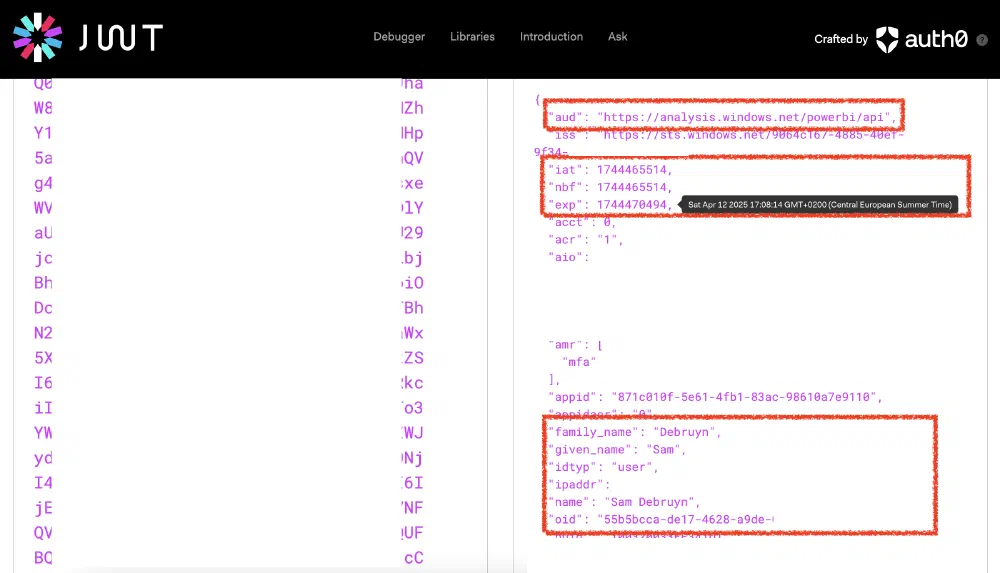
The image above shows you a token I used to access Microsoft Fabric. We can inspect its content and find a few interesting details all contained in the token:
aud- the audience of the token. This is the resource you want to access. In this case, it’s the Fabric API. We’ll come back to this later.iss- the issuer of the token. This contains your tenant ID.iatandnbf- the issued at and not before times. This is when the token was issued and when it becomes valid. This is a UNIX timestamp, but JWT.io can nicely convert it for you just by hovering over the value.exp- the expiration time of the token. This is when the token will no longer be valid. This is again a UNIX timestamp.appid- the application that created the token. Here, the token was created by the Power BI / Fabric web service.oid- the object ID of the user or service principal that created the token. This is a unique identifier for the user or service principal in the tenant.
You can also see it contains my name, IP address, and a bit further down you’ll also find your username / email address.
Typically, when you’re running into issues and you’re trying to figure out what’s going on, you’ll look at the aud, exp, and oid values to verify that they match what you’d expect.
Which authentication principal to use when?
There are 2 scenarios in which you might need to authenticate:
You are a user and you want to use a service from your own computer while you’re using it interactively.
Your code or application is running somewhere automatically (e.g. in a pipeline, on a schedule, etc.) and you want to authenticate without user interaction.
In the first case you’ll always be using a user account. In the second, there are 2 options:
Any form of managed identity. This should always be your preferred option as it doesn’t require you to manage any credentials. This is the most secure option.
A service principal. Here you’ll need to manage credentials (client secret or certificate) and make sure your application has access to these during runtime.
Often, a managed identity is available:
- In Fabric, use Workspace Identity (if possible)
- In Synapse, use Managed Service Identity
- In Azure Data Factory, use Managed Identity
- In Azure DevOps or GitHub Actions, you can use a service connection with federated credentials linked to a User-Assigned Managed Identity
Common ways to get a Microsoft Entra ID access token
Let’s look at a few common ways to get an access token. In the examples, I left out the scope as we’ll cover that in the next section.
Using Fabric Workspace Identity or Synapse service identity
In Synapse notebooks, Spark Jobs, Livy sessions, … you can acquire access tokens to access anything as the Synapse service identity.
1from notebookutils import credentials
2
3token = credentials.getToken(scope)
⚠️ This is not possible in Microsoft Fabric at the time of writing. Workspace Identity in Fabric can only be used for authentication in Shortcuts and Network Security.
Note that Microsoft does not support regular audiences/scopes in this case. You can only use the following scopes:
Inside Fabric
vault: Azure Key Vaultml: Azure Machine Learningstorage: Azure Storagepbi: Fabric and Power BIkusto: Azure Data Explorer
Inside Synapse
Storage: Azure StorageVault: Azure Key VaultAzureManagement: Azure Resource ManagementDW: Synapse Serverless and Dedicated SQLSynapse: Synapse Analytics Workspaces and SparkADF: Azure Data FactoryAzureDataExplorer: Azure Data ExplorerAzureOSSDB: Azure Database for PostgreSQL, MySQL, and MariaDB
In code: Python, C#, Java, JavaScript, …
For most programming languages, Microsoft provides a library named Azure Identity.
- Python:
pip install azure-identity - C#:
dotnet add package Azure.Identity - Java:
com.azure:azure-identity - JavaScript:
npm install @azure/identity
This library has about the same set of classes in every language and is very easy to use. It comes with a set of Credential classes that can be used to acquire tokens. The most common ones are:
AzureCliCredential- this will use the credentials of the user logged into the Azure CLI.VisualStudioCodeCredential- this will use the credentials of the user logged into Visual Studio Code.AzurePowerShellCredential- this will use the credentials of the user logged into Azure PowerShell.InteractiveBrowserCredential- this will open a browser window and ask the user to log in.ManagedIdentityCredential- this will use the managed identity of the resource it’s running on (does not work inside Synapse or Fabric).EnvironmentCredential- this will use the credentials set in the environment variables. This is useful for service principals.WorkloadIdentityCredential- used mostly in Kubernetes environments.
There are a few more, but the best practice is to use the DefaultAzureCredential class which will try all of the above (except InteractiveBrowserCredential) and a few more until it finds one that works. This is the most flexible option and works well in most scenarios.
1from azure.identity import DefaultAzureCredential
2
3credential = DefaultAzureCredential()
4token = credential.get_token(scope)
Using the Azure CLI
You can use the Azure CLI to acquire an access token, whichever way you are logged in.
1az account get-access-token --resource <scope>
Using PowerShell
You can do the same in PowerShell as well:
1$token = (Get-AzAccessToken -ResourceUrl <scope>).Token
Using the Power BI / Fabric web UI
In your web developer console (open with F12 or CTRL+SHIFT+J or CMD+OPT+J), enter the following:
1powerBIAccessToken
This prints out the token you’re actively using while using the Power BI / Fabric web UI. Note that you cannot issue a new one here or change the token scope. You can also copy it to your clipboard with the following code:
1document.querySelector('#copy').remove()
2copy(powerBIAccessToken)
Access token scopes
One thing you migth have noticed is that I kept mentioning a scope. Also, confusingly, the terms “resource”, “scope”, and “audience” are often used interchangeably.
The scope is usually a predefined URL. At the end of the scope, you append the permissions you want to request. However, unless you’re directly calling the Microsoft Entra ID API, you can often only provide a single permission set. In this case, we’ll append .default at the end of the URL to request all permissions available in the scope.
These are the different scopes you typically use in the context of working with data:
Azure SQL:
https://database.windows.net/.default
Used for accessing Azure SQL Database, Azure SQL Managed Instance. This also works for accessing Azure Synapse Serverless/Dedicated SQL Pools, Fabric SQL Analytics Endpoint, Fabric Data Warehouse, and Fabric SQL Database.Azure Databricks:
2ff814a6-3304-4ab8-85cb-cd0e6f879c1d/.default
Used for accessing Azure Databricks.Power BI / Fabric:
https://analysis.windows.net/powerbi/api/.defaultorhttps://api.fabric.microsoft.com/.default
Used for accessing Power BI, Fabric APIs, or Fabric Database/Lakehouse/Warehouse through SQL.Azure Storage:
https://storage.azure.com/.default
Used for accessing Azure Storage, Data Lake Gen2, and OneLake.Synapse Dedicated SQL:
DW
This scope can be used from within Synapse Studio to access the dedicated SQL pool. This only works with the mssparkutils/notebookutils.Azure Key Vault:
https://vault.azure.net/.default
Used for accessing Azure Key Vault.Azure Resource Management:
https://management.azure.com//.default
Used for accessing Azure Resource Management APIs.
Usage with PyODBC
If you’re using the above to connect to SQL using PyODBC, you have to convert your token to bytes and pass it along the connection attributes, like so:
 1import struct
 2from azure.identity import DefaultAzureCredential
 3import pyodbc
 4
 5cred = DefaultAzureCredential()
 6
 7token = cred.get_token("https://api.fabric.microsoft.com/.default")
 8b_token = bytes(token.token, "UTF-8")
 9exp_token = b""
10for i in b_token:
11    exp_token += bytes({i})
12    exp_token += bytes(1)
13token_struct = struct.pack("=i", len(exp_token)) + exp_token
14
15connection_string = "Driver={ODBC Driver 18 for SQL Server};Server=yourendpoint.database.fabric.microsoft.com,1433;Database=yourdwh"
16
17with pyodbc.connect(connection_string, attrs_before={1256: token_struct }) as handle:
18    with handle.cursor() as cursor:
19        cursor.execute("select 1 as id")
20        records = cursor.fetchall()
21        print(records)
Usage with SQLAlchemy
Alec Van den broeck also commented on this post that it’s not very straightforward to use the access token with SQLAlchemy . The following code shows how to do this:
 1from sqlalchemy import create_engine, event
 2from sqlalchemy.engine.url import URL
 3
 4connection_string = "mssql+pyodbc://@my-server.database.windows.net/myDb?driver=ODBC+Driver+18+for+SQL+Server"
 5engine = create_engine(connection_string)
 6
 7@event.listens_for(engine, "do_connect")
 8def provide_token(dialect, conn_rec, cargs, cparams):
 9    # remove the "Trusted_Connection" parameter that SQLAlchemy adds
10    cargs[0] = cargs[0].replace(";Trusted_Connection=Yes", "")
11
12    # get token and convert it to a struct as demonstrated above for the ODBC driver
13    token_struct = ...
14
15    # apply it to keyword arguments
16    cparams["attrs_before"] = {1256: token_struct}
Conclusion
With the information above, you can use any combination. E.g. you can authenticatie to a SQL Server Managed Instance from a Notebook in Fabric using Workspace Identity, or you can use a GitHub Action to connect to a Fabric Database, and so on. I hope this post helps you understand the different ways to authenticate and how to acquire access tokens. If you have any questions, feel free to reach out.